Fix Conversion Tracking Setup Is Incomplete in Google Ads
When Google Ads flags your conversion tracking setup as incomplete, smart bidding stalls and ad spend goes unmeasured. Here is how to diagnose and resolve the issue.
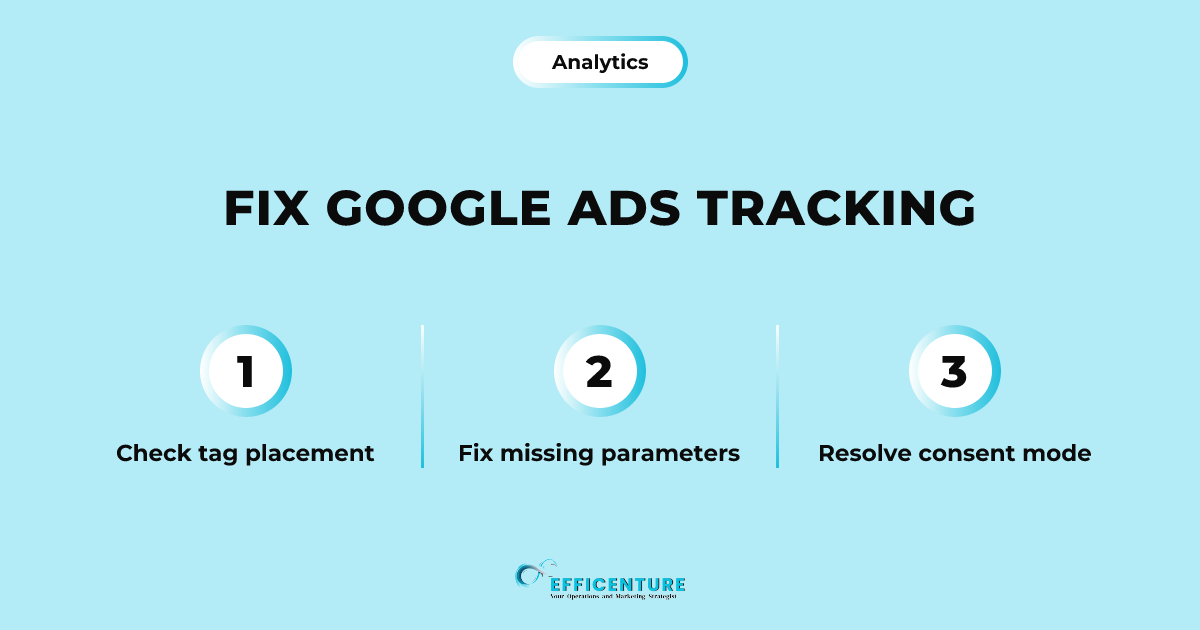
When Google Ads displays the notice that your conversion tracking setup is incomplete, it means the conversion tag has not fired yet. You can fix this by verifying that the global site tag or Google Tag Manager container is correctly installed, triggering a live test event, and checking that landing page URLs retain their ad click parameters.
Leaving this error unresolved halts smart bidding algorithms, distorts campaign reporting, and makes it impossible to know which ads generate actual sales or leads. For growing companies across Kenya and East Africa running digital ad campaigns, unverified tracking often leads to wasted budget on keywords that do not convert.
To get your data flowing properly, you need to understand what the specific status message means, where the tracking breakage occurs, and how to verify the fix across your entire lead path. Professional analytics and reporting helps establish clean data pipelines so marketing decisions rest on facts rather than assumptions.
What the setup incomplete status actually means
The setup incomplete status in Google Ads indicates that your tracking tag has been created in the platform, but Google has not recorded a verified fire event from your website. This warning appears in the Conversion Actions table under the Tracking Status column.
Google Ads uses four primary status indicators to describe the health of a conversion tag. Understanding the distinction between these statuses helps you isolate whether the problem sits in your code, your tag manager, or your web traffic volume.
Unverified status
This status appears immediately after you create a new conversion action in Google Ads. It means the system is waiting for the tag to fire on your website for the very first time. If you have not visited the website yourself to perform a test action, the status remains unverified.
Setup incomplete status
Google flags the setup as incomplete when the system detects partial installation. This frequently happens if you add the conversion ID to your website code but omit the specific event snippet, or if you configure a tag in Google Tag Manager without publishing the workspace.
No recent conversions status
This message means Google verified the tag in the past, but no conversion events have been recorded over the last seven days. For businesses running seasonal campaigns or operating in high-value B2B niches with low transaction counts, this status often reflects actual visitor volume rather than a technical failure.
Tag inactive status
Google marks a tag inactive when it has not recorded any conversion data for more than 30 days. When a tag becomes inactive, Google Ads stops using its historical data to improve automated bidding strategies. If you want to review basic account structure before troubleshooting code, read our guide on Google Ads setup and management.
How to diagnose tag placement and firing errors
Diagnosing a broken tracking tag requires inspecting the live code on your site rather than staring at the Google Ads dashboard. When a conversion action fails to register, the breakdown usually happens at the tag injection level or during event execution.
The fastest way to inspect tag execution is using browser testing tools and debugging extensions. You do not need developer credentials to perform an initial audit of your site tagging health.
Using Google Tag Assistant
Google Tag Assistant Companion is a Chrome extension that links your browser session directly to Tag Manager. Open Tag Assistant, enter your landing page URL, and complete a test form or checkout process. Tag Assistant records every tag that triggers, showing whether the Google Ads Conversion Tracking tag fired successfully or failed due to missing variables.
Inspecting network requests in Chrome DevTools
If you do not use Google Tag Manager, open Chrome DevTools by right-clicking your webpage and selecting Inspect. Navigate to the Network tab, filter for `google-analytics` or `googleadservices`, and trigger the conversion action on your page. Look for a network request containing `google_conversion_id`. A HTTP response code of 200 confirms the tag sent data to Google, while a missing request indicates the script did not run.
Checking global site tag placement
The Google tag (gtag.js) must appear in the `<head>` section of every webpage on your site. If you place the global script inside the page body or footer, browser rendering delays may cause the page to unload before the tag finishes sending data. Ensure the event snippet sits directly below the main tag on the specific conversion page, such as a thank-you page. If managing code snippets directly on your website feels fragile, setting up Google Tag Manager setup allows you to manage all marketing tags from a clean interface without editing source code.
Fixing missing gclid parameters and redirection issues
A common cause of unverified conversion tracking in East Africa is the loss of the Google Click Identifier (gclid) parameter during page redirects. When a user clicks your search ad, Google appends a unique string called a gclid to your landing page URL. This parameter connects the site visitor back to the specific ad campaign that drove the click.
If your website strips this parameter before the visitor converts, Google Ads cannot attribute the conversion, and the setup may show as broken or inactive.
Redirects caused by HTTP to HTTPS transitions
If your ad URL points to `http://yourdomain.com` but your server automatically redirects visitors to `https://yourdomain.com`, the server configuration might drop URL query parameters during the redirect. Check your final URL settings in Google Ads to ensure your destination link matches your secure site protocol exactly.
Payment gateway redirects and third-party tools
E-commerce businesses in Kenya using payment gateways for M-Pesa, card, or mobile payments frequently encounter tracking breaks when customers leave the site to complete payment. When the gateway redirects the user back to your site success page, the original session parameters may be lost. You must configure cross-domain tracking or ensure your payment provider returns the user to a dedicated confirmation page with the original URL parameters intact.
Altered URLs from trailing slashes and mobile redirects
Adding or removing a trailing slash at the end of a web link during a redirect can wipe out tracking parameters. Similarly, scripts that detect mobile devices and redirect users from desktop pages to mobile subdomains often strip query strings. Test your destination URLs across both desktop and mobile devices to confirm the gclid parameter remains visible in the browser address bar throughout the session. For a detailed breakdown of native conversion tags versus imported conversions, refer to our step-by-step conversion tracking guide.
Resolving Google Tag Manager container and consent mode blocks
When you use Google Tag Manager to deploy tracking code, simple administrative oversights can leave your tags dormant. Even when your container code is installed on your site, unpublished container changes prevent new conversion tags from going live.
Privacy features and consent management banners can also intercept and block conversion tags before they send signals to Google.
Publishing container changes
Creating a tag and trigger inside Tag Manager does not make it live on your website. You must click the Submit button in the top right corner of the GTM workspace, give your version a title, and click Publish. A surprisingly high percentage of incomplete setups stem from tags sitting in draft status inside GTM.
Consent Mode restrictions
Google Consent Mode allows websites to adjust tag behaviour based on user consent choices regarding cookies and data storage. If your consent banner sets `ad_storage` or `ad_user_data` to denied by default without updating those permissions when a user accepts cookies, Google Ads conversion tags will not execute. Review your consent banner integration to confirm it updates data layer flags correctly upon user action.
Content Security Policies blocking external scripts
If your site uses a strict Content Security Policy (CSP) header for security compliance, the server may block your web browser from loading external scripts from `www.googletagmanager.com` or `www.googleadservices.com`. Ask your web developer to inspect the browser console for CSP violation errors and add Google official domains to your site script whitelist. If you want a quick review of your site tagging health and digital marketing setup, you can request a free marketing audit to identify hidden technical gaps.
Handling offline and delayed conversions for service businesses
Not all business conversions happen immediately on a webpage confirmation screen. Professional service firms, legal practices, and B2B suppliers across towns like Eldoret, Mombasa, or Kisumu often collect inquiries via web forms, phone calls, or WhatsApp, closing the sale days or weeks later through an offline interaction.
When your conversion point takes place off your website, standard online tracking tags will mark the setup as incomplete if they receive no online triggers.
Call tracking setup errors
If you track calls using Google phone conversion numbers, the script replaces your website phone number with a dynamic Google transfer number. If your website displays phone numbers as raw images or hardcoded text inside graphic elements, the script cannot swap the number, and call tracking will fail to initialize.
Offline conversion import failures
When importing conversion events directly from a CRM or spreadsheet, Google Ads requires the original gclid, the conversion name, and the exact conversion time in a standardized format. If your CSV upload contains date formatting errors or mismatched conversion names, Google rejects the upload batch, leaving the conversion action in an unverified state.
Form submission redirect delays
Form builders that display an inline thank-you message without triggering a data layer event or updating the page URL make it difficult for tag triggers to fire. Reconfiguring your contact forms to redirect users to a dedicated `/thank-you` URL ensures tag firing is simple and consistent. Businesses looking to generate qualified inbound leads can strengthen their measurement infrastructure by exploring structured lead generation services.
Diagnosing incomplete setups step by step
To fix an incomplete conversion tracking status methodically, follow this checklist. Moving through these steps sequentially prevents you from wasting time re-editing code when the issue is simple timing or URL parameters.
| Diagnostic Step | Action Required | Expected Result |
| :--- | :--- | :--- |
| 1. Container Status | Check GTM workspace for unpublished changes. | All tags submitted and published. |
| 2. Tag Assistant | Run preview mode on the conversion page. | Tag fires on trigger event. |
| 3. Parameter Check | Click an ad link and inspect landing page URL. | `gclid` remains in address bar. |
| 4. Test Conversion | Complete a real form or test purchase. | Conversion status changes to Active within 24h. |
| 5. Conversion Value | Ensure correct currency code (e.g. KES) is sent. | Values display in account currency. |
Step 1: Verify workspace publishing in GTM
Open your Tag Manager workspace and check the top right badge. If it shows uncommitted changes, click Submit, publish the container version, and clear your browser cache.
Step 2: Test firing conditions using Tag Assistant
Launch Tag Assistant Companion, enter your URL, and emulate a complete customer session. If your event tag stays under the Tags Not Fired section, review your trigger logic to ensure element IDs, CSS selectors, or page path rules match your site structure exactly.
Step 3: Verify auto-tagging in Google Ads settings
In your Google Ads account, navigate to Admin, select Account Settings, and verify that the Auto-tagging checkbox is enabled. Without auto-tagging, Google Ads will not attach tracking parameters to your ad clicks automatically.
Step 4: Perform a live test conversion
To move a tag from Unverified or Setup Incomplete to Active, Google must record a live event. Click your own ad or use Google Ad Preview tool to visit your site, complete the target conversion action, and wait 3 to 24 hours for Google Ads to update the status column.
Step 5: Check conversion action settings
Open the conversion action in Google Ads and review the primary versus secondary designation. If set to Secondary, the action will track data but will not be used for automated campaign bidding. Aligning your tracking parameters with your commercial goals requires a tailored measurement strategy that accounts for your complete customer acquisition process.
Why correct tracking setup matters for business growth
Fixing an incomplete conversion tracking setup is not merely an exercise in clearing error messages from your marketing dashboard. Accurate tracking directly governs how effectively Google Ads spends your capital.
Modern ad platforms rely heavily on machine learning algorithms like Target CPA and Target ROAS. When your tracking setup is incomplete or sending inaccurate data, these algorithms optimize towards the wrong user signals, resulting in higher acquisition costs and poor lead quality.
Protecting campaign spend from inaccurate bidding
When conversion tags fail to fire, Smart Bidding assumes your ads are performing poorly and lowers bids on keywords that might actually be driving revenue. Conversely, if a tag fires multiple times per single form submit due to misconfigured trigger rules, the system over-bids on low-value traffic because it sees artificial performance spikes.
Reconciling revenue with eTIMS and accounting systems
For businesses managing inventory, e-commerce stores, or corporate sales in Kenya, marketing data must align with actual business accounting. If your ad dashboard claims 50 conversions but your bank account or eTIMS invoice records show only 10 actual transactions, your business calculations for Customer Acquisition Cost become unviable. Clean conversion tracking bridges the gap between ad clicks and actual business revenue.
Scaling budgets with confidence
Growing a business requires spending capital on channels that generate predictable returns. Once your conversion tracking setup is fully verified and sending clean data, you can increase daily budgets safely, knowing that every key metric in your performance reports reflects actual customer actions.
Fix your tracking setup with Efficenture
Uncertainty in your tracking data directly impacts your business profitability. Operating from Nairobi, Efficenture provides operations and digital marketing support to help businesses across Kenya and East Africa build reliable measurement systems and eliminate tracking breaks.
If your ad accounts show incomplete setup errors, missing conversion data, or mismatched reporting metrics, our team can audit your setup, resolve tagging issues, and ensure your marketing spend delivers accountable results.
Visit our analytics and reporting service page to learn how we help businesses build clean, accurate tracking frameworks. To discuss your measurement setup directly with a specialist, call or WhatsApp us on +254 714 146 122 today.
Frequently asked questions
How long does it take for conversion tracking status to update in Google Ads?
After you complete a test conversion on your website, it typically takes between 3 and 24 hours for Google Ads to process the event data and update the status from unverified or setup incomplete to active.
Why does my Google Ads conversion tracking say setup incomplete even after adding the code?
This usually happens if you added the tag snippet to your site but have not generated a live conversion event yet, or if your site strips the gclid parameter from landing page URLs during redirects.
Will an incomplete conversion tracking setup stop my Google Ads from running?
No, your ads will still show to potential customers. However, automated bidding strategies like Target CPA or Target ROAS will not optimize properly, leading to inefficient ad spend and inaccurate reporting.
What is the difference between a primary and secondary conversion action in Google Ads?
Primary conversion actions are used by Google Smart Bidding algorithms to optimize campaign performance and appear in main reporting columns. Secondary conversion actions are tracked for observational purposes only and do not influence automated bidding strategies.
Weekly Insights
One useful idea a week, on what you care about
A two-minute weekly briefing for growing businesses: the insight worth knowing on each topic you pick, why it matters, one thing to do that week, and the guides that go deeper. Unsubscribe any time.